You've spent hours building a clean SketchUp model. The geometry is right, the materials are in place, and the client presentation is getting closer. Traditionally, turning that model into a photorealistic render meant setting up a separate render engine, configuring lights and materials, and waiting for the final image to process.
That is no longer the only way to render in SketchUp.
In 2026, you can create a photorealistic render from SketchUp without installing a traditional rendering plugin or setting up a complex lighting rig. One of the simplest workflows is to export your SketchUp view as a PNG or JPG and use an AI rendering tool to turn it into a realistic architectural image.
Key Takeaways
- You can render a SketchUp model without plugins: export the view as a PNG or JPG and upload it to a browser-based AI renderer.
- SketchUp 2026.1 also introduced its own native AI Render feature, installed as an extension and available on Web and iPad.
- Realism depends on camera perspective, material clarity, lighting direction, and believable geometry, not just render resolution.
- Traditional engines like V-Ray and Enscape still make sense when you need precise material control or a production render pipeline.
This guide explains how to do it step by step, how SketchUp's own AI Render fits into the workflow, and what you can change in your model to make the final render look more realistic.
SketchUp Renders Have Always Been Painful: Here's Why
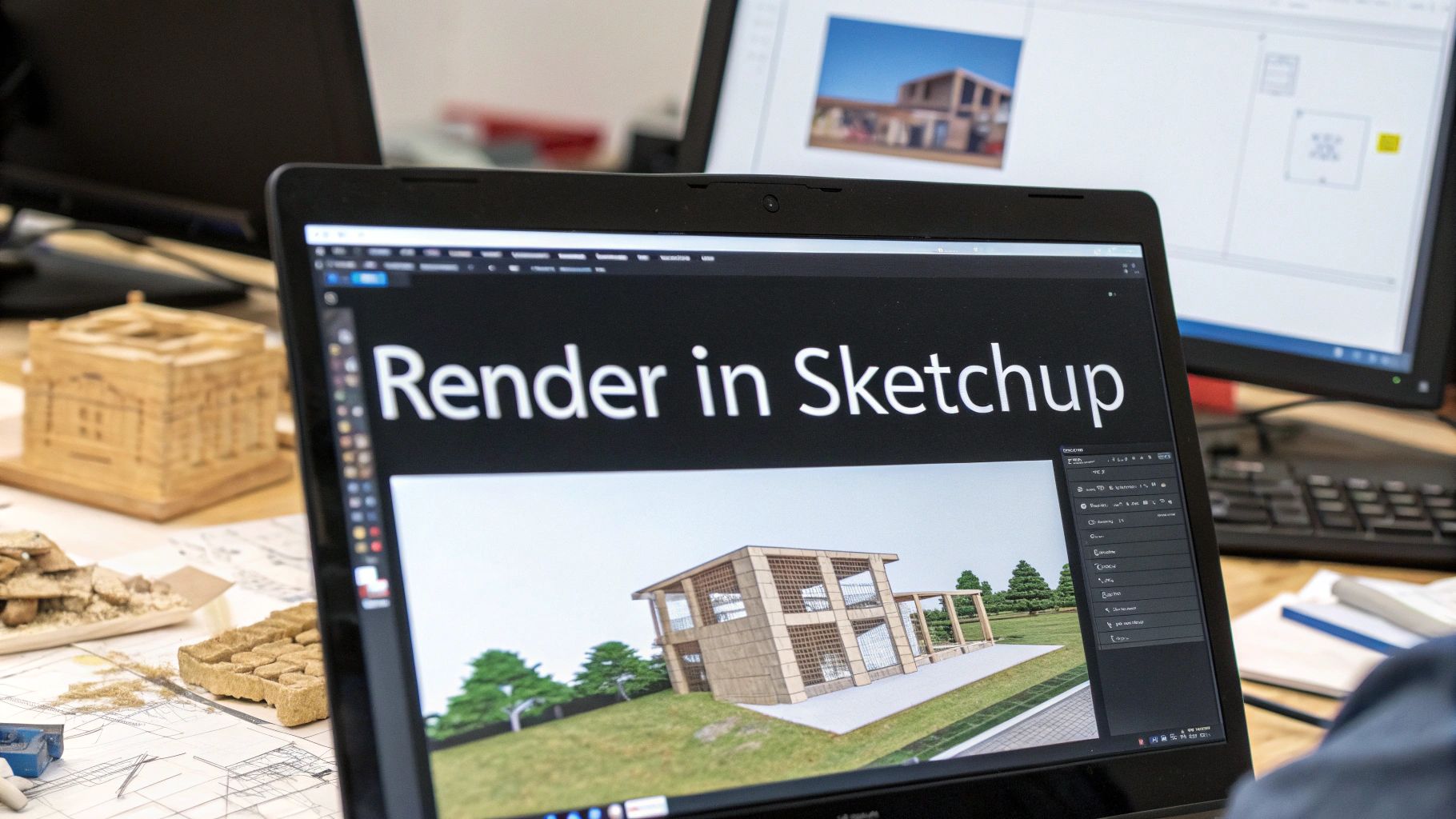
SketchUp is excellent for fast 3D modelling, but the standard viewport is primarily designed for modelling and design communication rather than final photorealistic visualization.
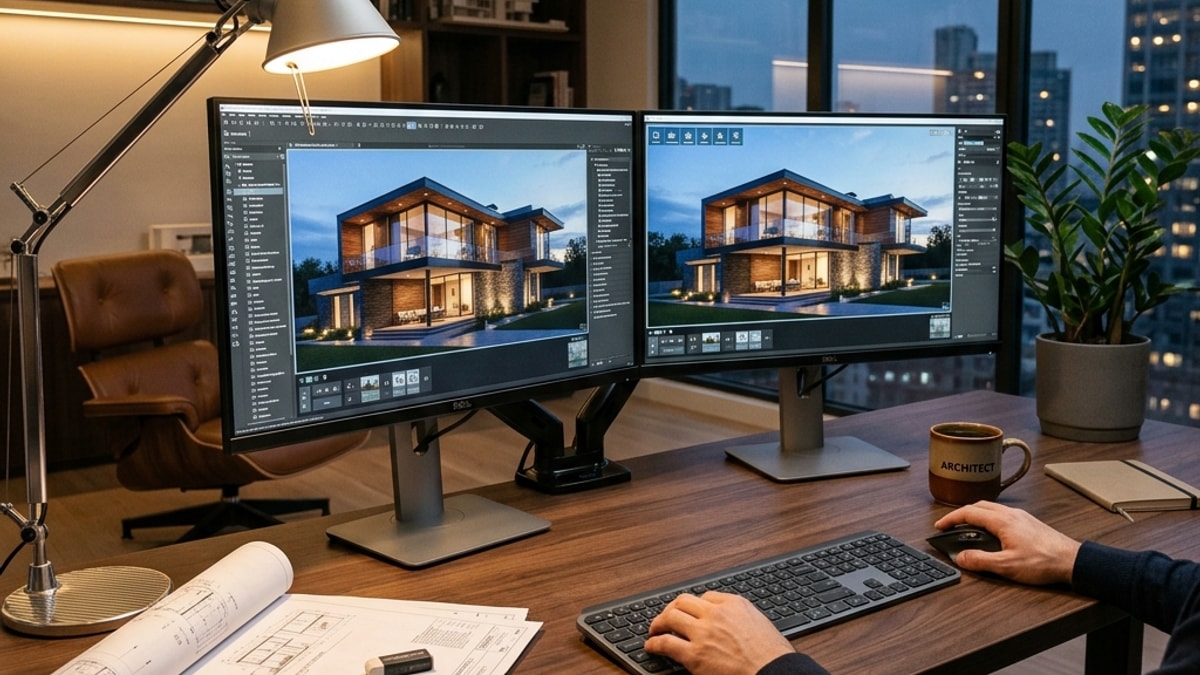
For years, the usual solution was to add a rendering workflow using tools such as V-Ray or Enscape, or move the model into another visualization application. These tools can produce excellent results, but they also introduce another layer of setup: materials, lighting, environment settings, render quality, hardware requirements, and often a separate learning curve.
That level of control is useful when you need it. But if the goal is simply to turn a resolved SketchUp design into a client-ready image, a full traditional rendering setup can be more work than necessary.
AI rendering offers a different path. Instead of rebuilding the scene inside a render engine, you can use the SketchUp view you already created as the visual reference for the final render.
The goal is not to replace the modelling process. It is to shorten the distance between a finished SketchUp view and a presentation-ready image.
Rendering in SketchUp Without Plugins
Yes. You don't need to install V-Ray, Enscape, or another traditional rendering plugin to create a realistic image from a SketchUp model.
A no-plugin workflow can be as simple as:
- Prepare the view inside SketchUp.
- Export it as a PNG or JPG.
- Upload the image to a browser-based AI renderer.
- Generate the photorealistic version.
- Refine the lighting, materials, or mood if needed.
With Vibe3D's SketchUp rendering workflow, the rendering happens in the cloud. There's no render engine to install and no local GPU rendering process to manage.
This is especially useful if you work across different computers, use a Mac, collaborate with a team, or simply don't want rendering software tied to a particular SketchUp version.
How to Render a SketchUp Model with AI
Step 1: Prepare the SketchUp View
Start with the model you already have. You don't need to rebuild it for AI rendering, but the exported view should clearly communicate the design.
Before exporting, check that:
- The camera angle is final or close to final
- Important furniture and architectural elements are visible
- Materials or basic colours are applied to the main surfaces
- The model uses believable real-world proportions
- Guides, axes, selection outlines, and unnecessary construction elements are hidden
For interiors, use a natural eye-level camera whenever possible. For exteriors, choose an angle that clearly shows the building massing, openings, landscape, and material changes. The cleaner the SketchUp view is, the easier it is for the rendering model to understand what should be preserved.
Step 2: Export the SketchUp View as an Image
In SketchUp, go to File → Export → 2D Graphic, then export the view as a PNG or JPG.
Use the highest practical export resolution rather than taking a compressed screenshot. A cleaner input gives the AI more information about edges, material boundaries, furniture, glazing, and smaller architectural details. You don't need to run a traditional render first; the SketchUp viewport itself can be the starting point.
Step 3: Upload the Exported View
Upload the PNG or JPG to Vibe3D. Because the image already contains the model geometry, camera perspective, material placement, and composition, the AI can use those elements as the reference for the photorealistic result. You can then choose the lighting, time of day, and visual direction you want for the scene.
Step 4: Generate the Photorealistic Render
Generate the render and let the AI reinterpret the SketchUp viewport with realistic lighting, material response, shadows, depth, reflections, and environmental detail.
For an architectural workflow, the important part is fidelity. A useful render should improve the realism of the image without unnecessarily changing the design itself. If the SketchUp model is already close to the intended result, keep your directions simple and avoid asking for a complete redesign. For example:
Luxury bedroom interior, solid wood partition, polished floor with rugs, textured walls and ceiling. Keep artificial ambient lighting on, blending with natural daylight shadows. Preserve all materials as per the reference image.
Short, specific descriptions generally give the renderer a clearer visual target than long prompts containing many competing instructions.
Step 5: Refine the Result Instead of Starting Again
The first render doesn't have to be the final render. If the composition is correct but the lighting needs adjustment, change the time of day or relight the scene. If a small material or object needs correction, edit that area rather than rebuilding the entire SketchUp model and starting the rendering process again.
This is one of the main advantages of an AI-based workflow: the rendering stage becomes iterative rather than a long final step at the end of modelling.
Does SketchUp 2026 Have AI Rendering?
SketchUp 2026.1 introduced AI Render, SketchUp's own generative AI visualization feature.
SketchUp AI Render combines the active model viewport with a text prompt or preset style to generate a new image. It can create photorealistic visuals and includes controls for changing style and selectively editing parts of the generated image. On SketchUp for Desktop, AI Render is installed as an extension. SketchUp also makes AI Render available in its Web and iPad workflows, and SketchUp's AI features use AI Credits. You can read the current documentation in SketchUp's official AI Render guide.
So why use an external AI rendering workflow? It comes down to how you prefer to work. If you want AI generation directly inside SketchUp, its native AI Render is the most integrated option. If you want to keep rendering separate from your modelling software, a browser-based workflow lets you export a view and continue the visualization process independently of the SketchUp application.
Neither approach changes the most important part of the process: a well-composed SketchUp view gives the renderer a better starting point.
How to Make SketchUp Renders Look Realistic
If your SketchUp render still looks artificial, increasing resolution alone usually won't solve the problem. Realism comes from several visual cues working together.
Use a Natural Camera Perspective
Avoid excessively wide views that stretch furniture, walls, and corners. Architectural images usually look more convincing when the perspective feels similar to a real camera. For interiors, keep the camera around a believable eye level and keep vertical lines straight wherever possible. For exteriors, avoid viewpoints that distort the building simply to fit more of it into the frame.
Give Materials Clear Visual Information
You don't need perfect PBR materials in the SketchUp viewport, but the main surfaces should be visually distinguishable. Wood should look different from stone. Glass should be identifiable as glass. Upholstery, metal, plaster, flooring, and landscaping should have enough colour or texture information for the renderer to understand the intended material. If material accuracy matters, describe only the important finishes and explicitly ask the renderer to preserve the existing materials.
Use Lighting With Direction
Perfectly even lighting often makes an image feel synthetic. A realistic render usually has a clear relationship between brighter areas, shadows, reflected light, and darker recesses. Morning or evening daylight can add depth, while subtle artificial lighting can help interiors feel occupied and believable. Avoid excessive bloom, glowing fixtures, or dramatic light effects unless that's genuinely part of the design intent.
Keep the Geometry Believable
AI can improve surface realism, but it can't fully compensate for incorrect proportions. Check door heights, furniture scale, ceiling heights, slab thicknesses, window sizes, stair proportions, and other elements that immediately communicate scale. A simple model with correct proportions usually renders more convincingly than an over-detailed model with inconsistent scale.
Preserve the Design When the Model Is Already Resolved
If you only want better realism, say so. Instructions such as "preserve the existing geometry, camera, furniture placement, and materials" help make the intent clear. This is particularly important for client-approved designs where an attractive image is not useful if the architecture has changed.
For a deeper breakdown of lighting, materials, reflections, texture scale, and camera setup, see our guide on how to make interior renders look photorealistic.
Best SketchUp Settings for Realistic Rendering
There's no single "best SketchUp render setting" when you're exporting a viewport for AI rendering. The most useful settings are the ones that create a clean and readable source image.
Before export, check the following:
- Camera: Use Perspective or Two-Point Perspective for most architectural views
- Field of view: Avoid extreme wide-angle distortion unless it's intentional
- Materials: Keep textures and material colours visible where they communicate the design
- Edges: Use a clean display style; heavy sketch effects can make material and geometry boundaries harder to interpret
- Guides and axes: Hide construction guides, axes, selections, and editing overlays
- Shadows: Use them if they help communicate the intended direction of light, but don't depend on SketchUp shadows for the final lighting quality
- Image size: Export at a high enough resolution that important edges and details remain clear
The objective isn't to make the SketchUp viewport look finished. It's to give the rendering system an accurate visual description of the model.
When a Traditional SketchUp Renderer Still Makes Sense
AI rendering is useful for speed, iteration, and client-facing visualization, but a traditional render engine still has advantages for some workflows.
V-Ray, Enscape, and similar tools can be the better choice when you need precise control over physically based materials, custom lighting rigs, render passes, real-time navigation, or a production pipeline built around a particular renderer.
The no-plugin AI workflow makes the most sense when the model is already designed and the priority is getting to a realistic still image quickly without building a separate rendering scene. If you're deciding between different approaches, our guide to rendering software for SketchUp compares the options in more detail.
From Static SketchUp Render to Flythrough
A finished still render can also become the starting point for presentation content beyond a single image.
With Vibe3D, rendered views can be used to create cinematic flythrough-style videos without manually setting up a traditional animation and rendering pipeline. This can be useful when a project needs both still images and motion content for a client presentation or social media.
The SketchUp model remains the design source, while the visualization workflow can continue after the initial render is complete.
Who This Workflow Is Built For
Independent architects and designers at small studios get the most immediate benefit. This workflow removes the specialist bottleneck: you don't need a dedicated visualization person, and you don't need to learn a new rendering engine. Export your SketchUp view and get client-ready output.
Freelance 3D visualizers gain a real speed advantage, with more projects in the same time and a commercial license that means every render is cleared for client use without a separate licensing conversation.
Students get a distinct option: 50 credits for a $9 one-time payment with a valid .edu or .ac email, with no monthly commitment.
Frequently Asked Questions
How do I render a SketchUp model?
You can render a SketchUp model using a traditional rendering engine, SketchUp's native AI Render, or an external AI rendering workflow. For a no-plugin workflow, export the model view as an image and use that view as the reference for the final render.
How do I render in SketchUp without plugins?
Prepare the view in SketchUp, export it using File → Export → 2D Graphic as a PNG or JPG, and upload the image to a browser-based AI rendering tool. The photorealistic rendering is then generated outside SketchUp, so you don't need to install a traditional rendering plugin.
Does SketchUp 2026 have AI Render?
Yes. SketchUp 2026.1 includes AI Render, which can combine the active model viewport with prompts or preset styles to create AI-generated images. On SketchUp for Desktop, AI Render is installed as an extension.
How do I make SketchUp render look photorealistic?
Start with a clean model, believable proportions, a natural camera perspective, and clearly defined materials. Then use realistic directional lighting, controlled reflections, shadows, and material response. An AI rendering workflow can add these photorealistic qualities to an exported SketchUp view without requiring a full traditional rendering setup.
Do I need V-Ray or Enscape to render SketchUp?
No. V-Ray and Enscape are popular rendering tools for SketchUp, but they aren't required. SketchUp now has its own AI Render feature, and external AI rendering tools can also create photorealistic results from exported SketchUp views.
What SketchUp render settings should I use for realistic results?
For an AI workflow, focus on the source view rather than traditional render settings. Use a natural perspective, keep materials visible, remove guides and editing overlays, avoid extreme field-of-view distortion, and export the view at a good resolution.
Can I use my existing SketchUp model?
Yes. In most cases, you can use the model you already have. Set the camera view you want, make sure the main materials and design elements are visible, then export that view as a PNG or JPG for rendering.
How long does an AI SketchUp render take?
Render time depends on the tool and the scene. Vibe3D is designed to turn exported architectural model views into photorealistic renders in under 60 seconds for typical workflows.
Final Thoughts
Rendering in SketchUp no longer has to mean building a complex render setup around your model.
If you already have the design, camera, and material intent in place, you can export the SketchUp view and use AI to handle much of the final visualization work. That makes it possible to create realistic client-facing images without installing a traditional rendering plugin, learning a new render engine, or relying on a high-end local GPU.
SketchUp's own AI Render also makes AI visualization increasingly native to the platform in 2026. The best workflow depends on how much control you need and whether you prefer to render inside SketchUp or keep visualization in a separate browser-based studio.
If you want to try the external workflow, render a SketchUp view with Vibe3D.